Moving off Jira and Confluence? Here's how to bring projects, issues, comments, worklogs and Confluence pages into Overbooked, step by step.
If you've ever kept a Jira tab, a Confluence tab, a time tracker and a spreadsheet of client hours open at once, this guide is for you. It covers why teams leave the Atlassian stack, exactly what comes across when you migrate to Overbooked (and what doesn't), and how to run the move without a scary "big bang" weekend.
Short version: connect your Atlassian workspace, pick the Jira projects you want, choose a sync mode, press one button. The long version is below, because migrations go wrong in the details.
Why you should migrate from Atlassian
Jira and Confluence are powerful. That's not the problem. The problem is everything you've had to build around them to actually run your work.
1. Your work is split across too many tools
Issues live in Jira. Specs live in Confluence. Time lives in a separate tracker. Invoices live in accounting software. Client conversations live in email and Slack. Every handoff between those tools is a place where context leaks out.
Overbooked puts projects, tasks, docs (we call them resources), time tracking, meetings, goals, clients and invoices in one workspace. A worklog doesn't need to be exported anywhere to become billable hours, because the hours and the invoice already live next to each other.
2. Configuration became a part-time job
Schemes, screens, custom fields, permission schemes, workflow editors. Jira can model anything, which is exactly why so many teams end up with a Jira admin and a backlog of "can you add a field for…" requests. Overbooked keeps the model deliberately small: projects, tasks with custom statuses, priorities, labels, estimates, sub-tasks, relations and milestones. Most teams find that's everything they actually used.
3. AI agents work better with one source of truth
If you want AI to do real work, like triaging issues, writing code against a task or summarizing a project, it needs context. When that context is spread across Jira, Confluence and three other tools, every agent needs every integration. In Overbooked, an agent connected once can read the task, the project docs, the history and the milestones, and can run coding sessions your whole team can watch. (More on that in our agents guide.)
4. You don't have to burn the boats
The best part: migrating isn't all-or-nothing. You can keep importing from Jira while your team tries Overbooked, or even run a two-way sync for a while. More on those modes below.
What you need before you start
An Overbooked workspace where you're an owner or manager. Only owners and managers can connect integrations. Teammates will see "Ask an owner or manager to change this connection."
An Atlassian account that can see the projects and pages you want to move. Overbooked only imports what that account can access. If your account belongs to several Atlassian sites, Overbooked connects to the first site it can access, so sign in with the account that sees the site you're migrating.
Your teammates invited to Overbooked (ideally) before you import. Assignees are matched to workspace members by email, so inviting people first means tasks land on the right person instead of coming in unassigned.
Step 1: Connect your Atlassian workspace
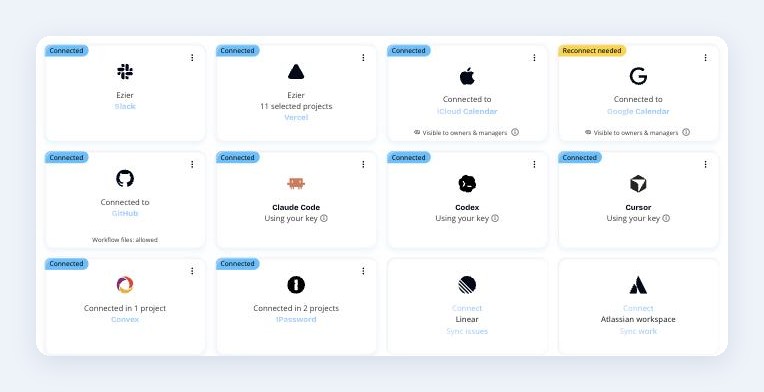
Open Integrations from the sidebar and find the Atlassian workspace card ("Sync work"). Click Connect.
You'll be sent to Atlassian to approve access. In plain words, Overbooked asks to:
read and write Jira work, and read Jira users (so it can import issues and, if you choose, sync changes back);
manage Jira webhooks (so it can hear about changes when you pick a continuous sync mode);
read Confluence pages, spaces, folders, comments, attachments and user emails;
read Atlassian Goals and Projects;
stay connected (so syncing keeps working after you close the tab).
Approve, and you're back in Overbooked with the card showing Connected. From now on, the card's menu has Projects, Import & sync, Reconnect and Revoke.
Step 2: Choose the Jira projects to bring over
The first dialog is Step 1 of 2 · Select Atlassian projects. It lists your Jira projects (up to 500), grouped and searchable. Tick the ones you want and click Save selection.
A tip from people who've done this before: don't migrate everything on day one. Start with one active project and one archived one. The active project tells you whether your workflow maps cleanly. The archived one tells you whether history and attachments look right. Then come back for the rest.
New Jira projects created later stay unselected until you add them, so nothing sneaks in.
Step 3: Pick a sync mode
This is the most important decision in the whole migration. The second dialog, Step 2 of 2 · Import from Atlassian, offers three modes:
One-time import: "Copy the selected Atlassian projects and issues once. Nothing changes automatically afterwards." Choose this when you're switching for good on a set date.
Keep importing from Atlassian: future Jira changes show up in Overbooked, and Overbooked never writes back to Jira. Choose this for a trial period, or when another team still lives in Jira and you just want a live mirror.
Two-way sync: changes can update both systems. It's an explicit opt-in, because edits to title, description, priority and status may overwrite values on the other side. Choose this only when Jira and Overbooked should stay actively linked for a while.
Our honest recommendation for most teams: run Keep importing for a week or two while everyone gets comfortable, then flip the switch and stop using Jira. Two-way sync is great for gradual rollouts across departments, but it's one more moving part to think about.
Step 4: Import, then go make coffee
The dialog shows a running count: projects, tasks, pages and goals. Click Import Atlassian workspace.
The import runs in the background. You'll see "Atlassian import started. It keeps running in the background. We'll notify you when it finishes." You can close the dialog, keep working, and an in-app notification tells you when it's done (or if it failed).
Big workspaces get imported in safe chunks: roughly 2,000 issues per project per run. If a run hits that limit, you'll see "The import reached its safe page limit. Run it again to continue." Re-running picks up where it stopped. Re-running is always safe, by the way: every project, task, comment, page and milestone remembers where it came from, so a second run updates things instead of creating duplicates.
What comes across (and how it maps)
Here's the full mapping, so there are no surprises on Monday morning.
Jira projects and issues
Jira projects → Overbooked projects. Your Atlassian Home projects are imported as Overbooked projects too.
Issues → tasks. The issue key is kept as the task ID, so
ABC-142is stillABC-142. Bookmarks, commit messages and "see ABC-142" comments keep making sense.Title and description come across as-is.
Statuses become custom project statuses, grouped into to-do, in-progress and done, so your board columns look familiar.
Priorities map onto Overbooked's three levels: Highest, High and Blocker become high; Medium and Normal become medium; everything else becomes low.
Estimates come from the original estimate (or remaining estimate if that's all there is).
Labels: the first label on each issue is kept.
Assignees are matched to workspace members by email. Clients are never auto-assigned.
Epics and sub-tasks become parent tasks and sub-tasks.
Issue links become task relations: "blocks" stays blocks, and other link types become "related".
Fix versions become milestones (released versions come in as completed). A task links to its first fix version.
Archived projects stay archived.
Comments, attachments and time
Comments become task comments. If a comment's author isn't in your workspace, their Atlassian name is shown instead.
Attachments are copied into Overbooked (up to 25 MB each). Images show inline in the task description; other files are listed under a "Jira attachments" heading.
Worklogs become time entries. This is the one Jira-to-invoice people get excited about. Logged hours land in Overbooked's time tracking, right next to your invoices. If a worklog author isn't a member, the time is credited to the person who connected Atlassian, so it's not silently dropped.
Confluence pages
All current Confluence pages the connected account can see are imported as Overbooked resources (docs), into a folder named after the first Jira project you selected.
Pages are tagged
AtlassianandConfluence, so they're easy to filter.Images in pages are re-hosted, so they don't break when you turn Confluence off, and page comments come across too.
Atlassian Goals
Goals come across by name as active goals for the current quarter. Plan to spend five minutes setting real targets and progress afterwards.
What doesn't come across
Being upfront about this saves you a support ticket:
Sprints, issue types, components and custom fields
Reporter and watchers
Labels beyond the first one, and fix versions beyond the first one
Due dates
If your team lives and dies by a custom field, decide before the move whether it becomes a label, a line in the description, or something you can finally let go of.
If you chose Keep importing or Two-way sync
With a continuous mode on, new issues, edits, deletions and comments in the selected Jira projects show up in Overbooked automatically. Worklogs refresh whenever their issue changes, and Overbooked does a periodic safety re-sync in case anything was missed.
With Two-way sync, a few rules keep things sane:
Only tasks and comments that came from Jira sync back. A brand-new task created in Overbooked is not created in Jira.
Status changes sync back only when the task uses a status that came from Jira.
If both sides changed the same thing, the incoming change wins.
Confluence pages are import-only. Editing a page in Overbooked never changes Confluence.
If something can't sync (say, a permission changed in Jira), it shows up in a Sync needs attention panel where you can Retry or Discard it. Nothing fails quietly.
A migration checklist that actually works
Invite your team to Overbooked first, with the same emails they use in Atlassian.
Connect Atlassian with an account that can see every project and space you need.
Pilot one project with Keep importing. Check statuses, assignees, attachments and a few worklogs.
Tidy statuses. Imported statuses are regular custom statuses, so rename or reorder them to fit how you want to work.
Import the rest, re-running if you hit the page limit.
Pick a cutover date. Tell the team "from Monday, new work goes in Overbooked."
Revoke the Atlassian connection from the Integrations card when you're done, if you're leaving for good.
FAQ
Will re-running the import create duplicates?
No. Re-running updates what was already imported and adds anything new.
Can I migrate only Confluence?
Confluence pages come in as part of the Atlassian import, so select at least one Jira project. Pages land in a folder named after the first one you pick.
Who can see the imported work?
Imported projects behave like any other Overbooked project and follow your workspace's normal permissions.
Does Overbooked keep the Jira issue keys?
Yes. Task IDs match your Jira keys, which makes the transition much less confusing for everyone.
What about clients who still use Jira?
Use Keep importing or Two-way sync on their projects and keep working in Overbooked while they stay in Jira.
Ready to move?
Open Integrations, connect your Atlassian workspace and import your first project. It takes minutes, and you can re-run or switch modes any time. If you're coming from Linear instead, we wrote a separate guide for that.